Coaches · 3 min
Plan a training session
Add a session to the calendar for one athlete or a whole group, and see afterwards how it went for everyone.
Updated October 23, 2026
You plan everything in Training → Training Plan. If you plan a session for a group, every athlete in it gets it in their app, and afterwards each of them can tell you how it went.
Create a session
Choose who it's for
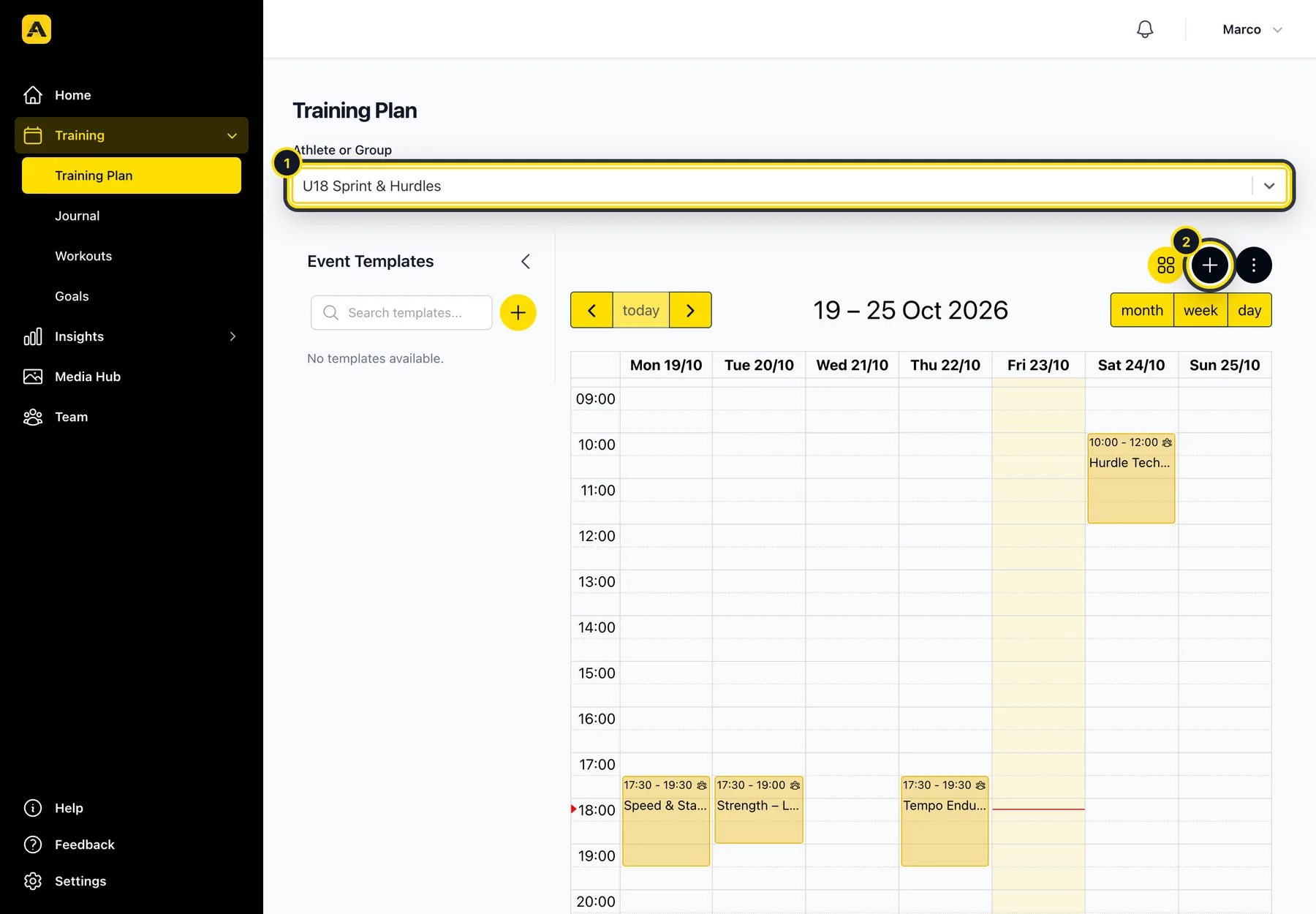
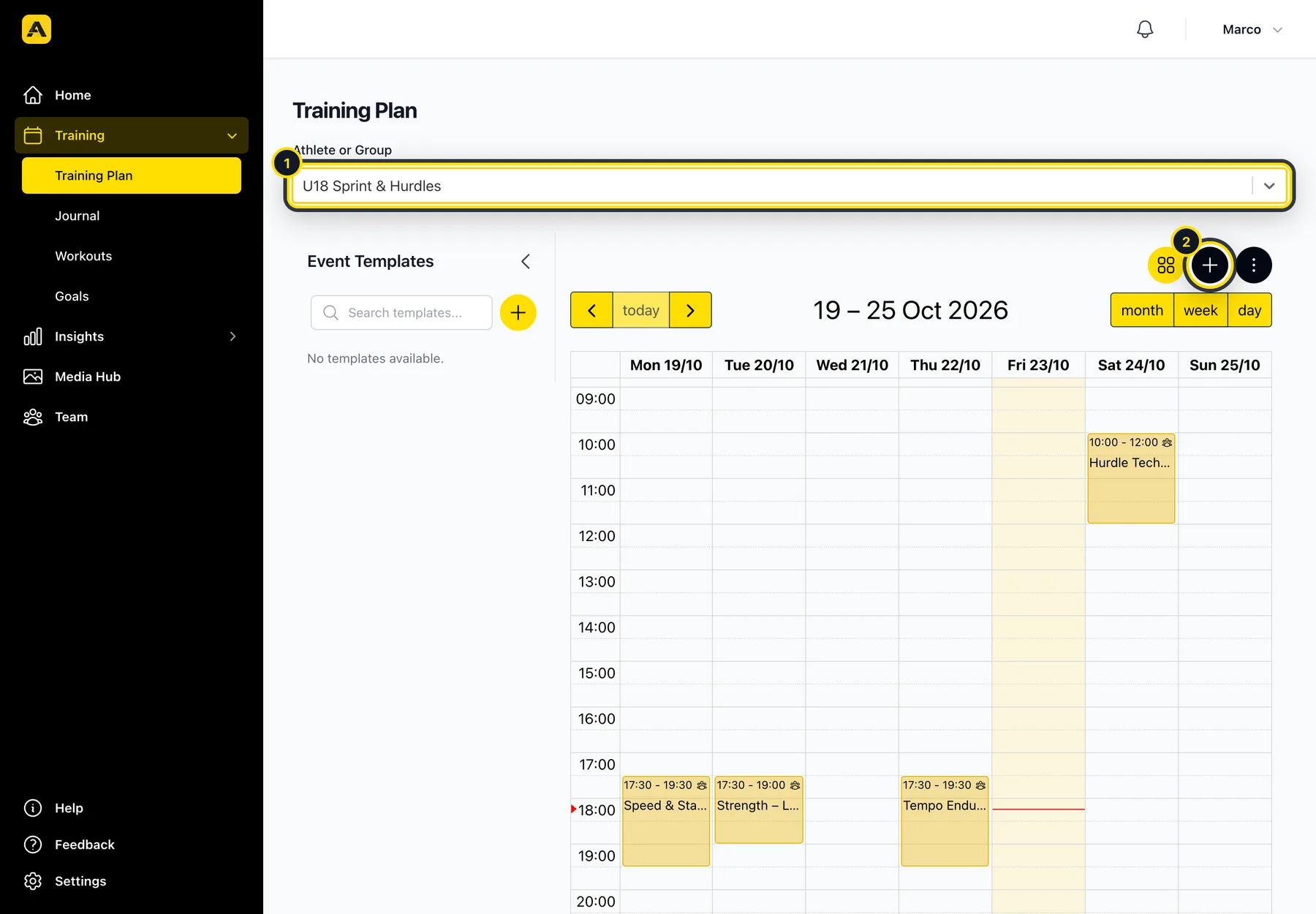
Open Training → Training Plan and pick an athlete or a group under Athlete or Group (1). Then click + (2).
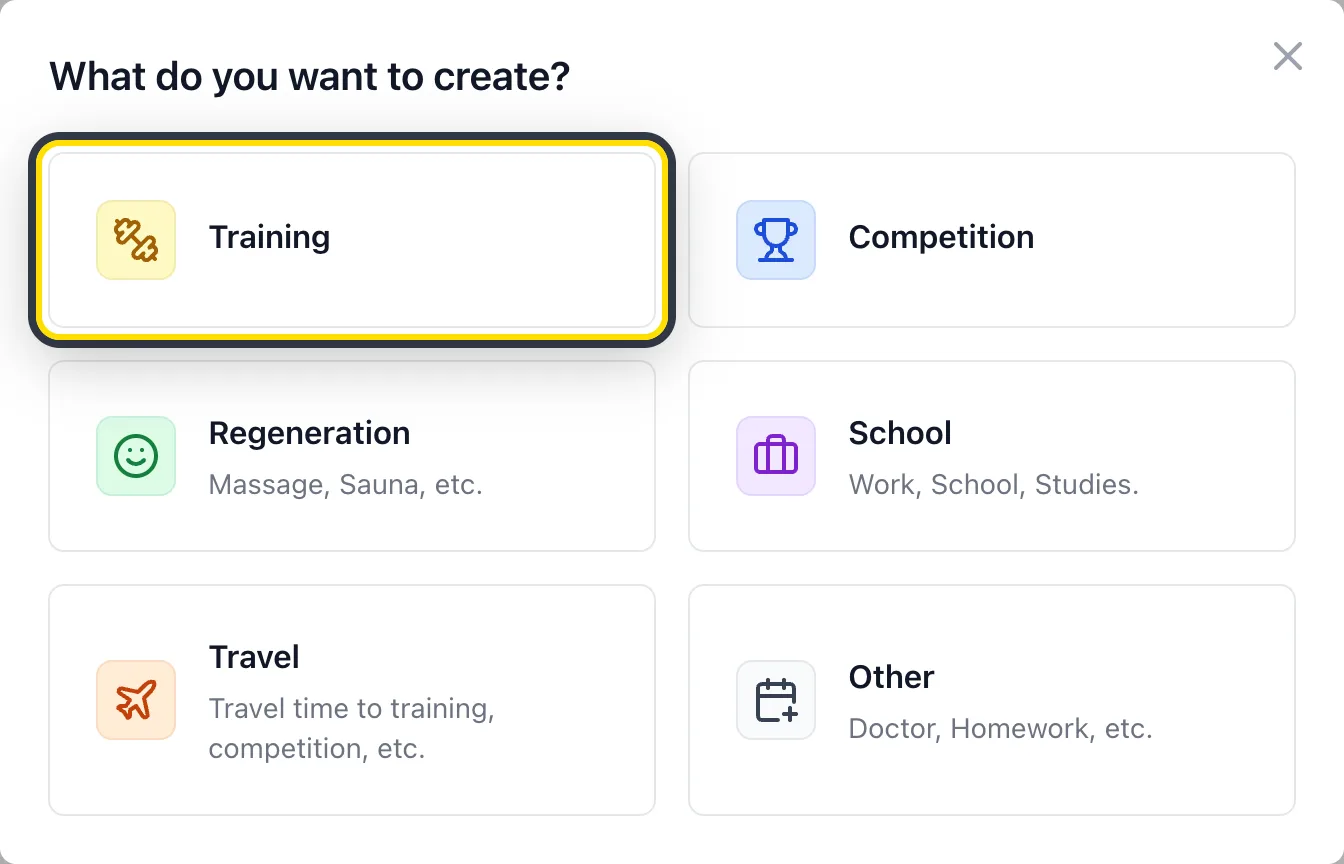
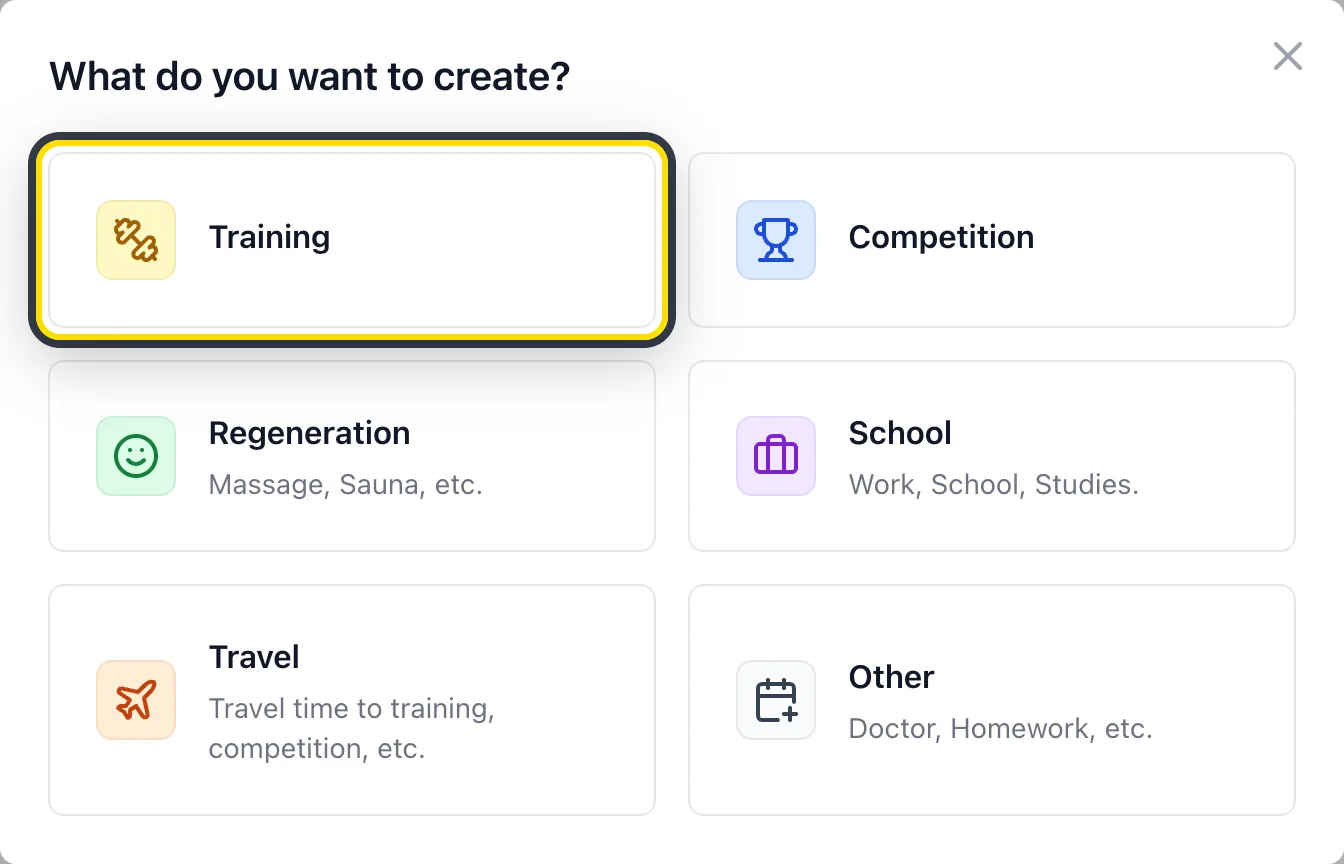
Choose “Training”
Competitions, regeneration such as physio or massage, school, travel and other appointments work the same way.
Add a title, date and time
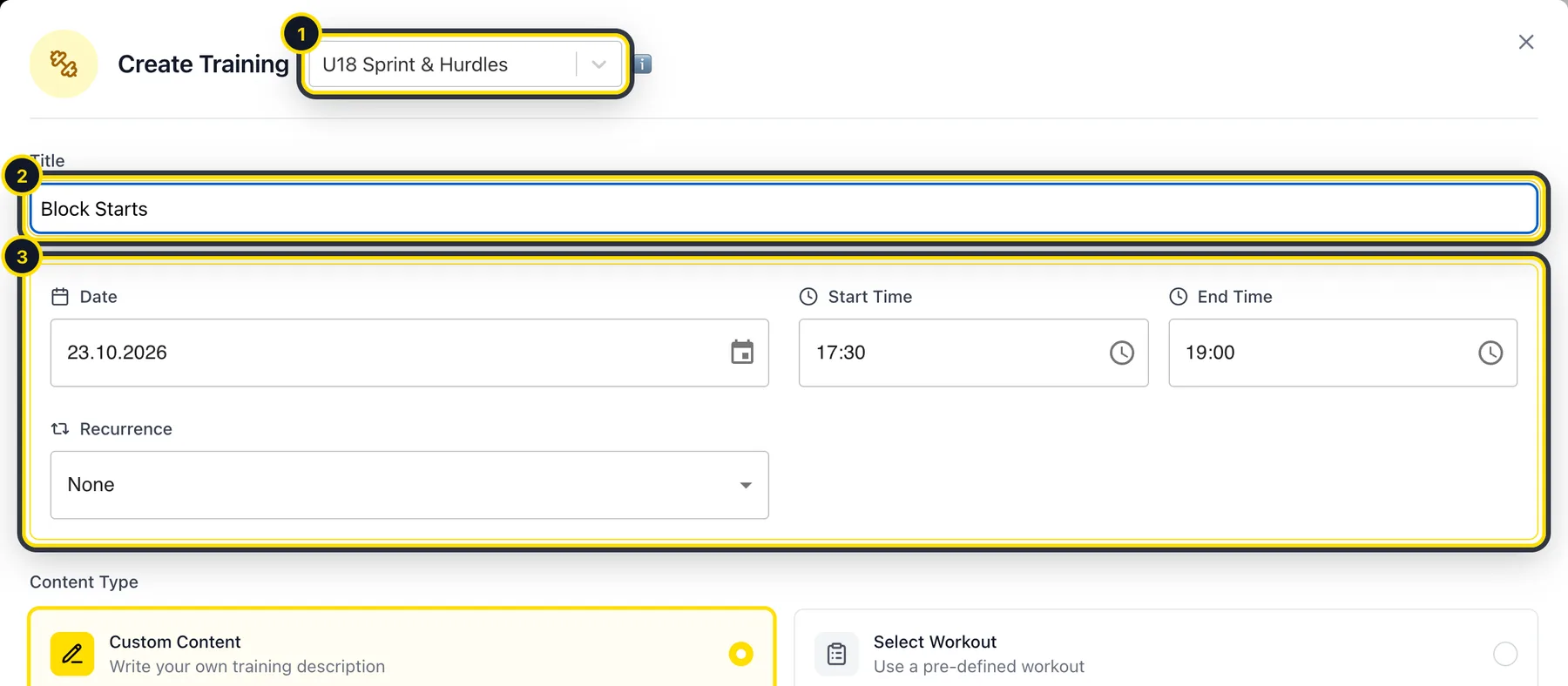
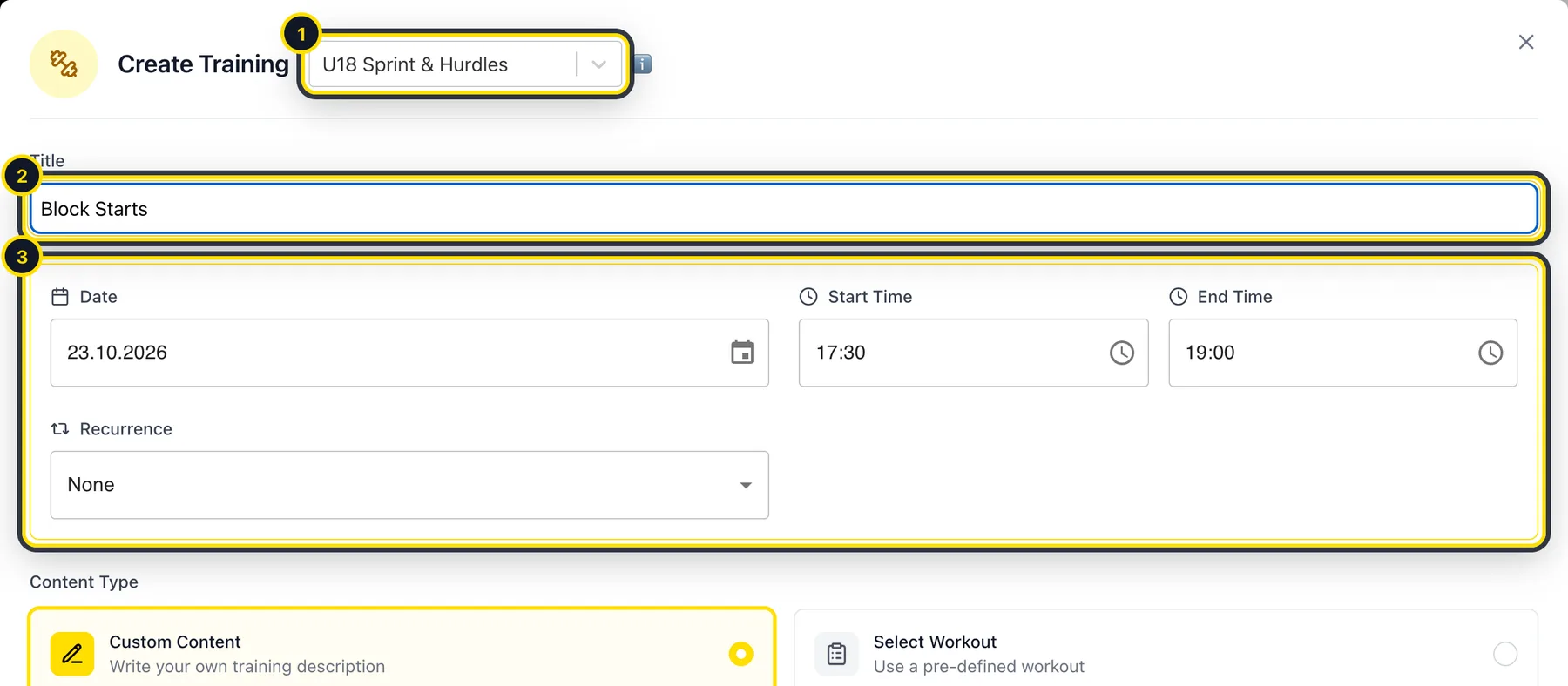
Check that the right group is selected at the top (1), then give the session a name (2) and set the date and time (3). If it happens every week, set it to repeat under Recurrence. Repeats can run for up to a year.
Describe the session
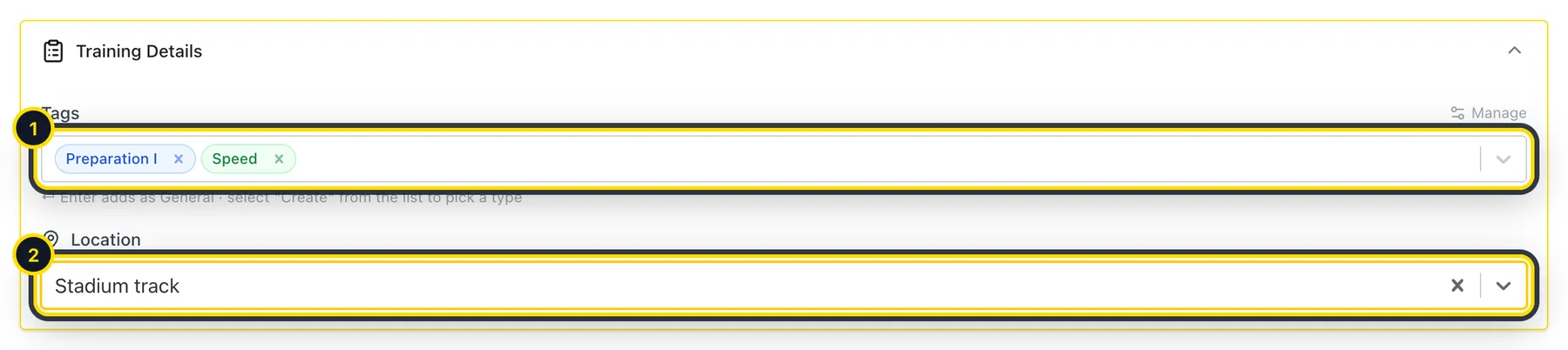
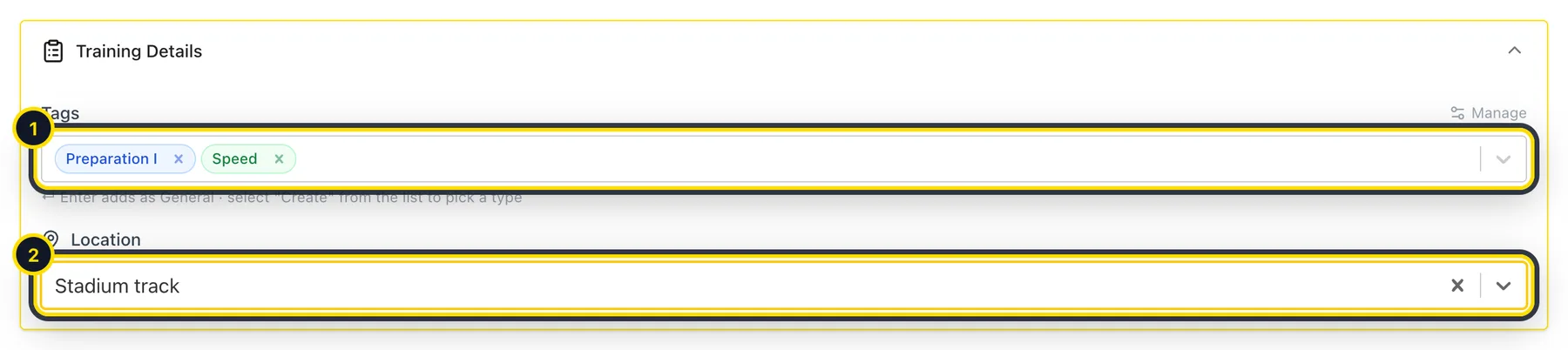
Write what you're planning in the text field, or choose Select Workout to use a workout with exercises and sets (see Build workouts). Under Training Details you can add tags such as the training phase or focus (1), and the location (2).
Save
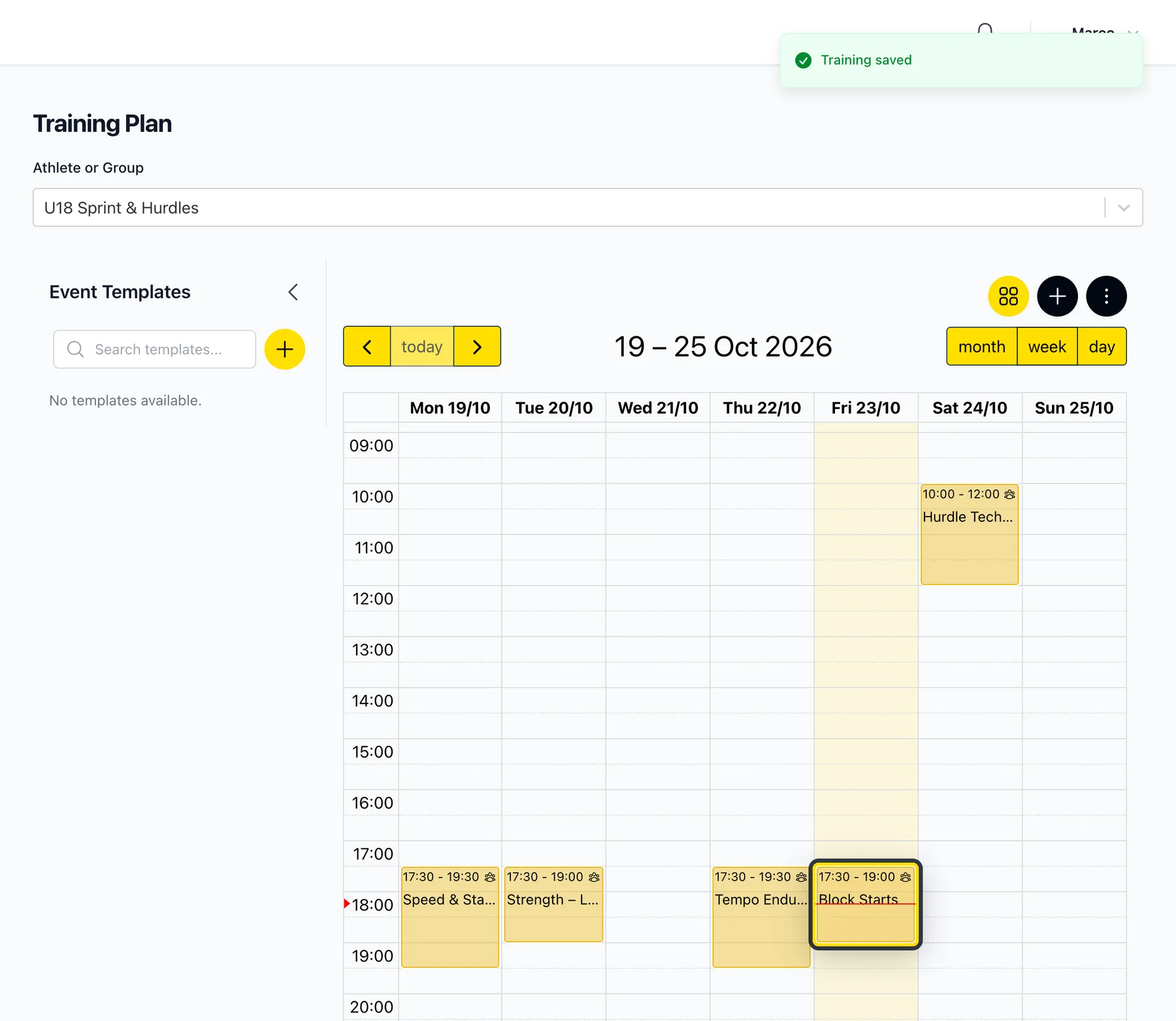
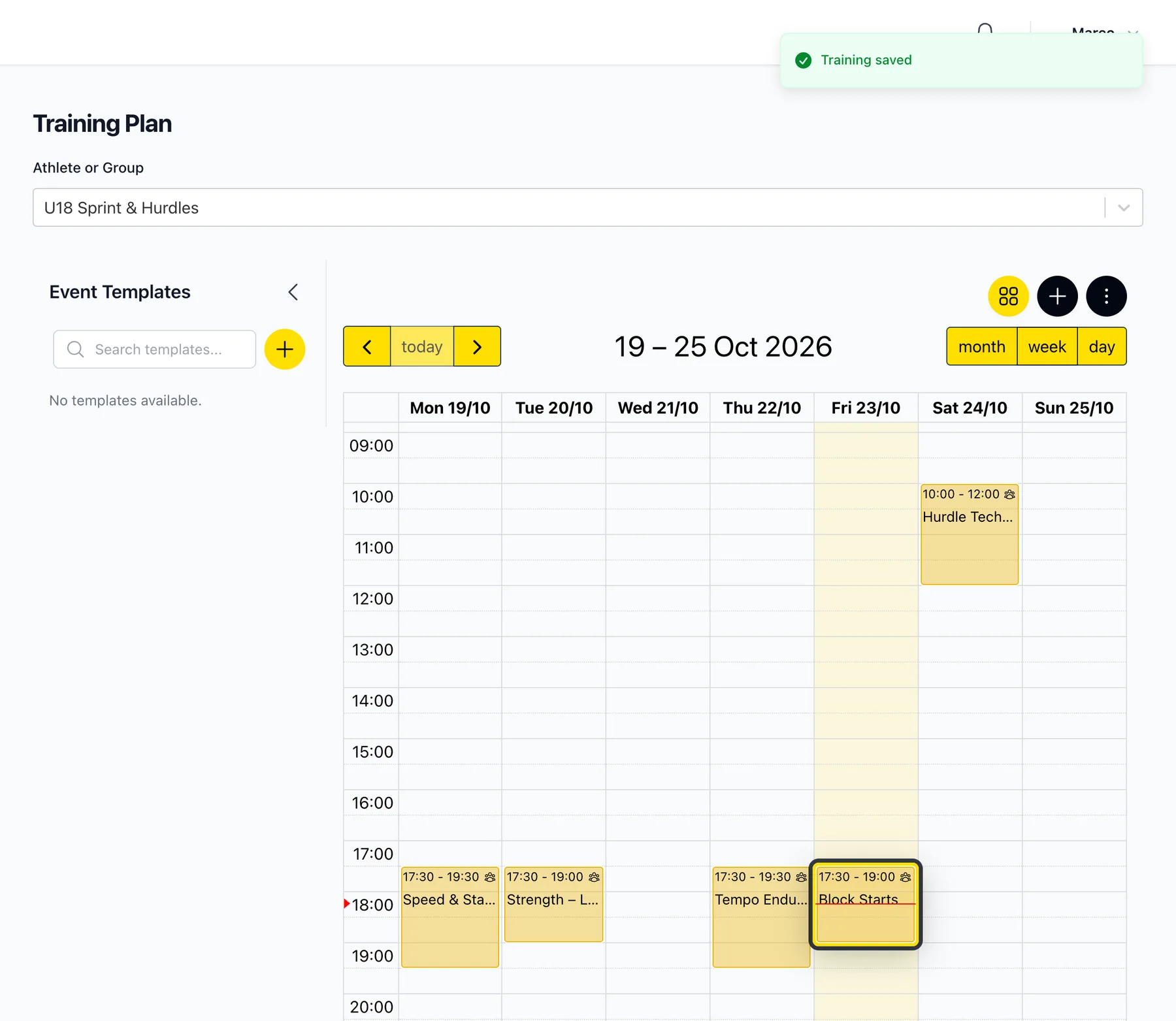
Click Save and the session appears in the calendar of everyone in the group.
See how it went
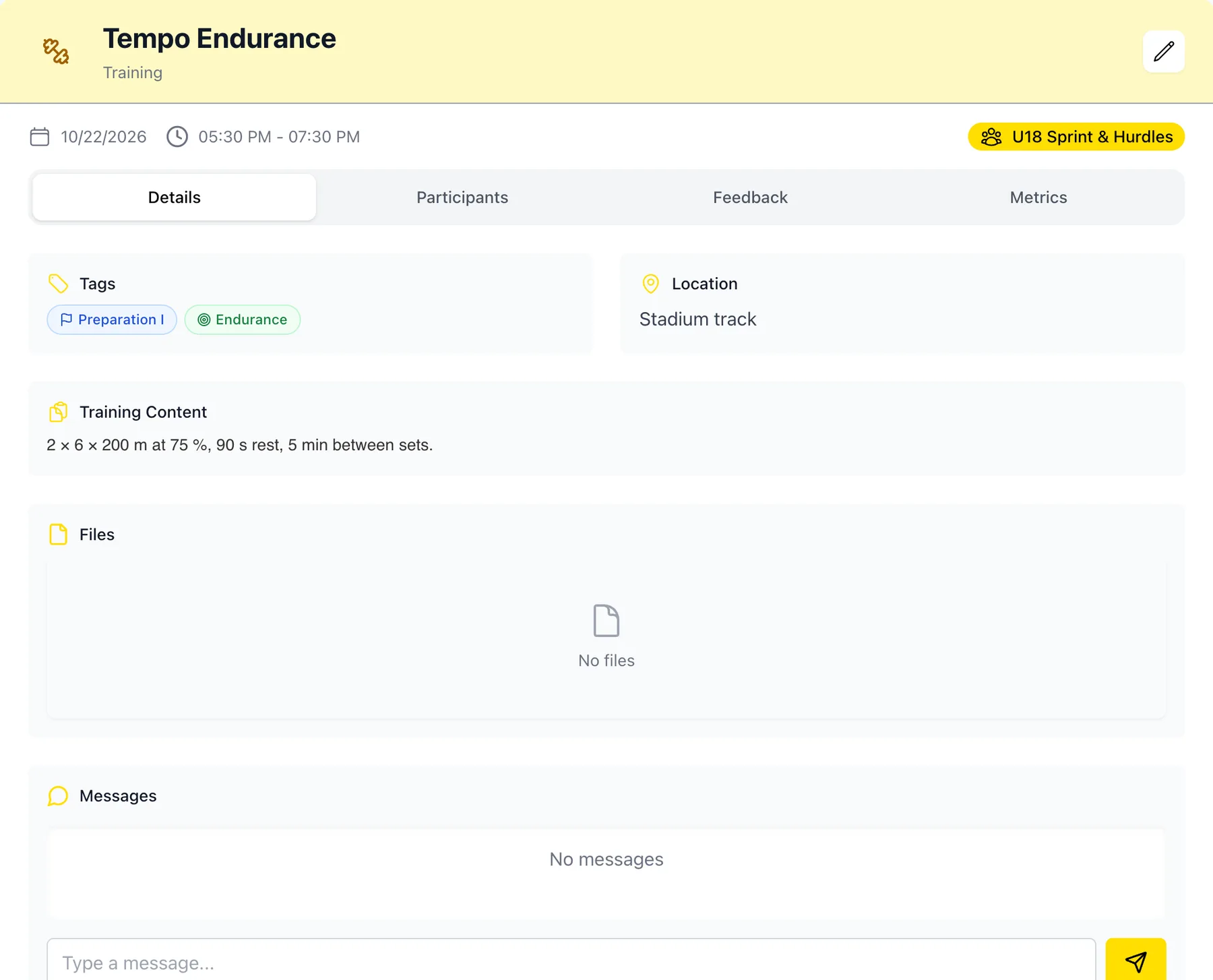
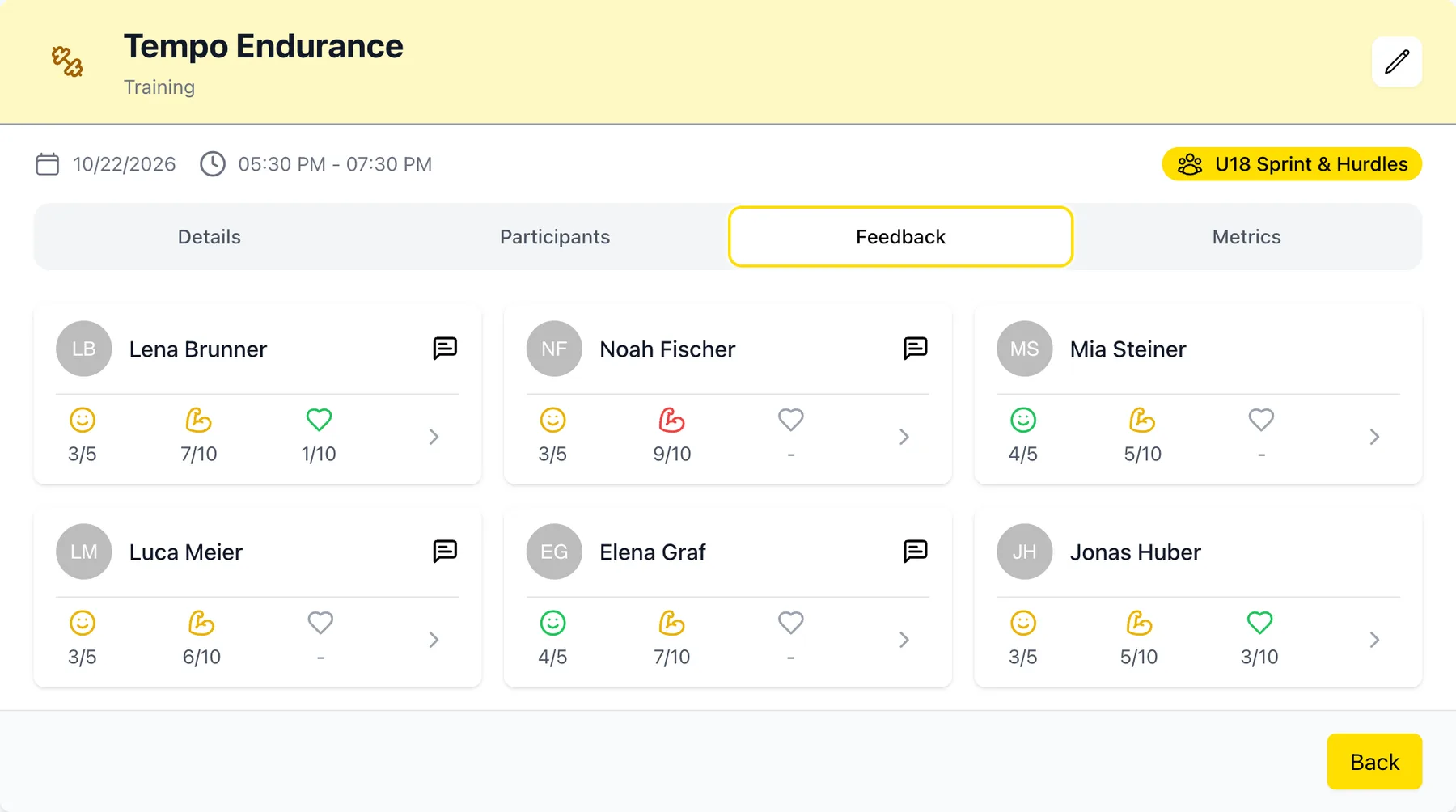
Click a session in the calendar to open it. Under Feedback you'll see, for each athlete, how hard it felt (RPE), how satisfied they were, whether anything hurt, and any notes they left.
Move or change a session
- Move it: drag it to another day or time. For group sessions, Athlog asks if you want to move it for the whole group or only for one athlete.
- Make it longer or shorter: drag its bottom edge.
- Edit it: open it and click the pencil. For repeating sessions, you can change just this one or all future ones.
- Change it for one athlete: select that athlete under Athlete or Group and edit their session. Everyone else keeps the original.
Good to know
- Athletes only see sessions you plan for them if they're connected to you. See Connect with your athletes.
- Other coaches in the same group can plan for it as well.
- Prefer a list to a calendar? The grid button next to + switches to a simple weekly view.
Didn’t find what you were looking for?
Send us an email. We usually reply the same day.