Athletes · 3 min
Sync your training plan with your calendar
See your sessions in Apple Calendar, Google Calendar or Outlook, next to everything else in your week.
Updated October 23, 2026
If you live by your phone's calendar, you can have your training plan show up there too. You subscribe to your plan once, and whenever your coach changes something, your calendar updates by itself.
Copy your calendar link
Open your training plan
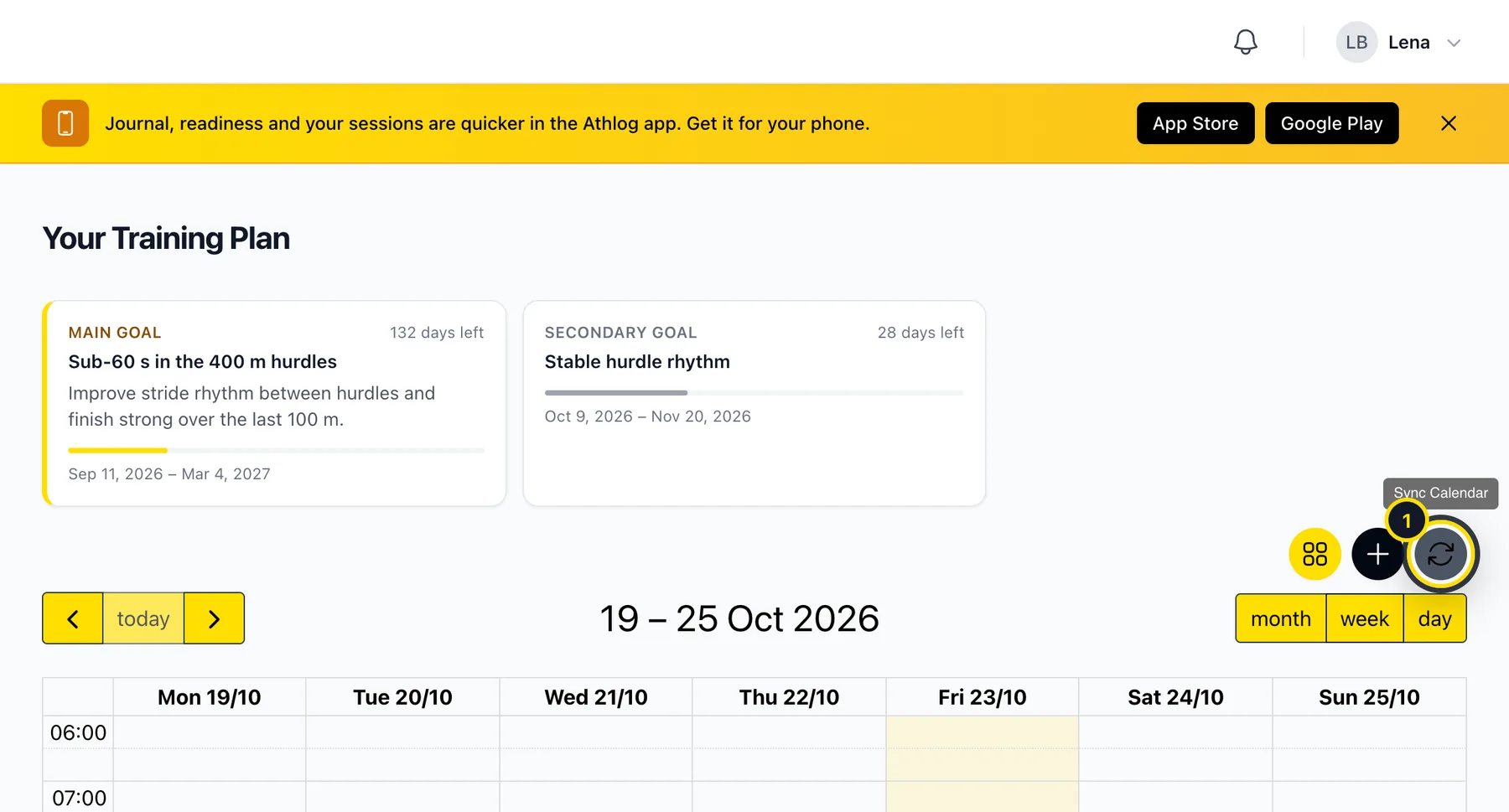
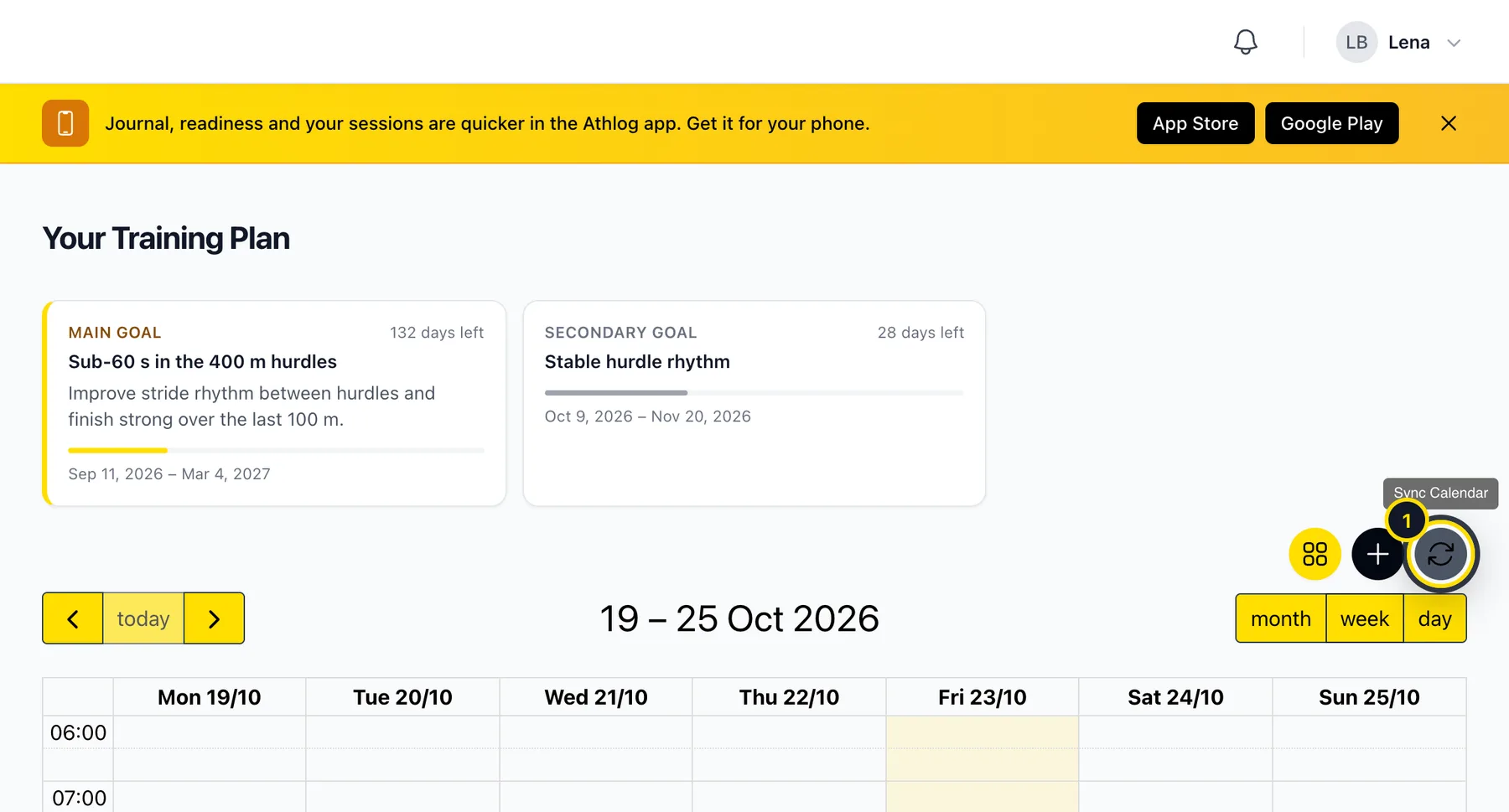
On my.athlog.app, open Training Plan and click the sync button (1) next to +.
Copy the link
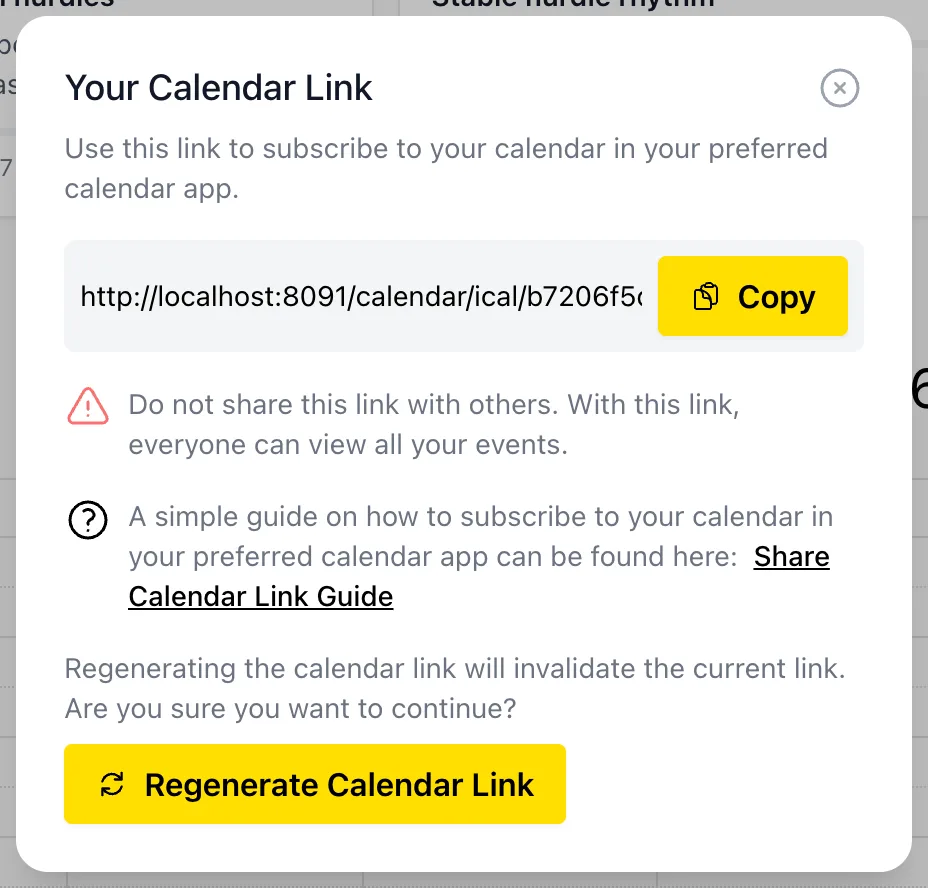
Click Copy next to Your Calendar Link.
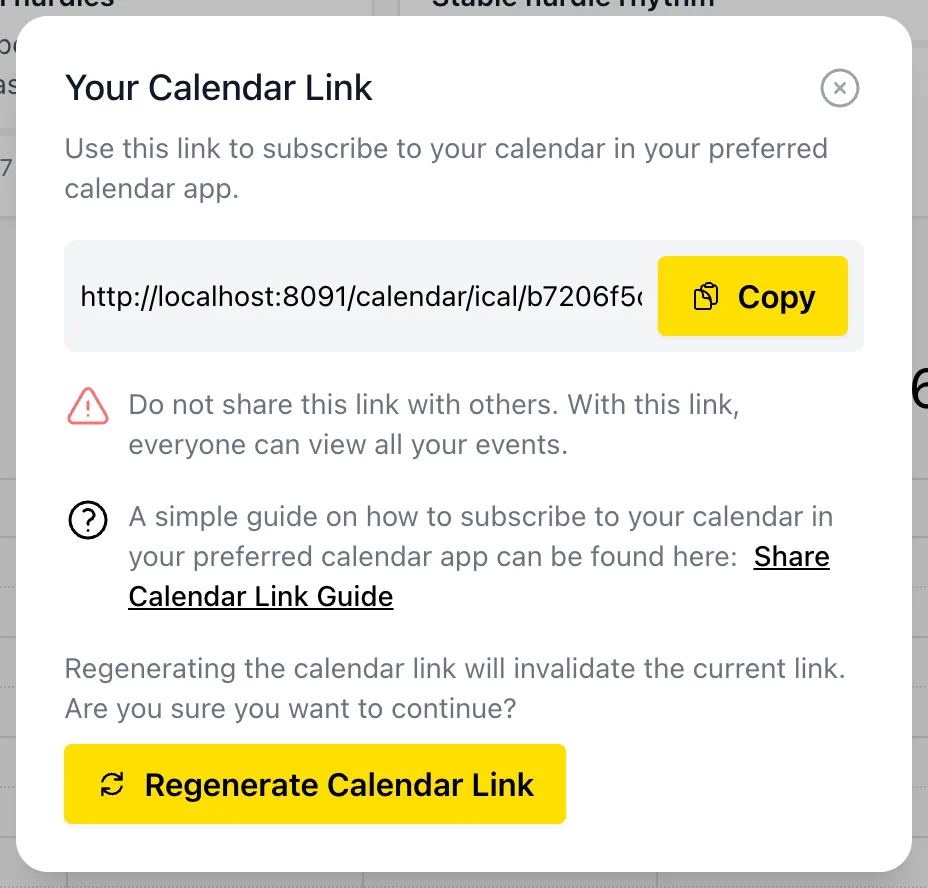
Keep this link to yourself. Anyone who has it can see all your sessions. If you've shared it by mistake, click Regenerate Calendar Link. The old link stops working and you subscribe again with the new one.
Add it to your calendar
iPhone (Apple Calendar)
- Open the Calendar app and tap Calendars at the bottom.
- Tap Add Calendar, then Add Subscription Calendar.
- Paste the link, tap Subscribe and then Add.
Google Calendar
- Open calendar.google.com on a computer.
- Next to Other calendars, click + and choose From URL.
- Paste the link and click Add calendar. A few minutes later it also shows up on your phone.
Outlook
- In Outlook on the web, go to Calendar, then Add calendar and Subscribe from web.
- Paste the link, give the calendar a name and click Import.
Good to know
- You can't change sessions in your calendar. Changes are made in Athlog, and your calendar follows.
- Calendar apps check for updates on their own schedule, usually every few hours. Google can take up to a day. In Apple Calendar, pull down on the list to refresh it right away.
Didn’t find what you were looking for?
Send us an email. We usually reply the same day.